Minerva · Staff Manual
Admissions
The full admission pipeline: walk-in enquiries, online applications, scholarship exams, waiting lists, and cancellations with refunds.
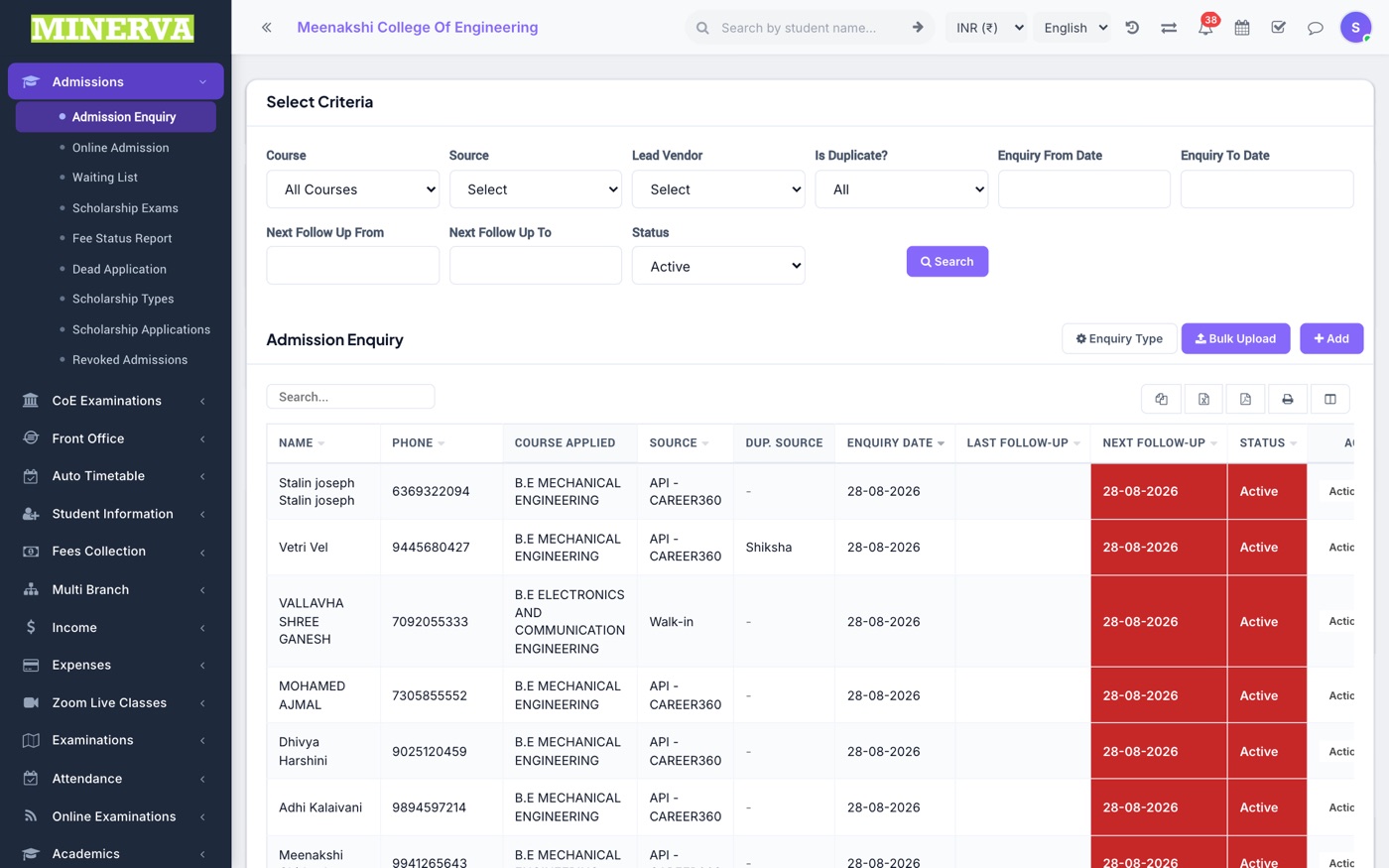
Admission Enquiry
Walk-in and phone enquiries from prospective parents, with follow-up tracking.
- Press + Add to log an enquiry with contact details, class sought, and source.
- Use the row actions to record a follow-up, mark it won/lost, edit, or delete.
Online Admission
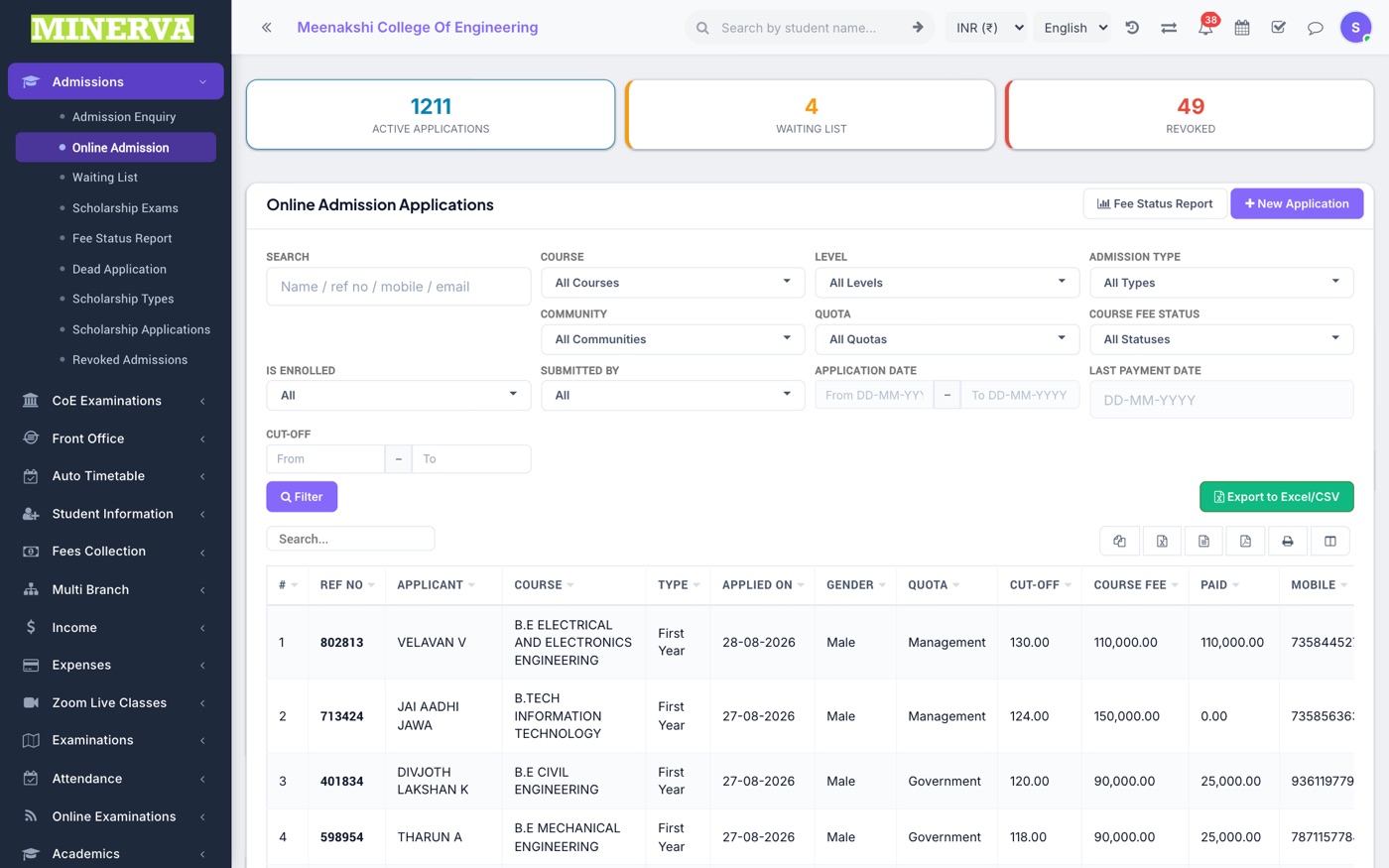
Applications submitted through the public admission form, with fee status, filters, and per-applicant actions.
- Filter by course, quota, fee status, or search by name/reference number.
- Click an application to review details, documents, and payments; use Enroll to convert an admitted applicant into a student.
- Row actions cover editing, follow-up notes, waiting list, marking dead, and revoking an admission.
Waiting List
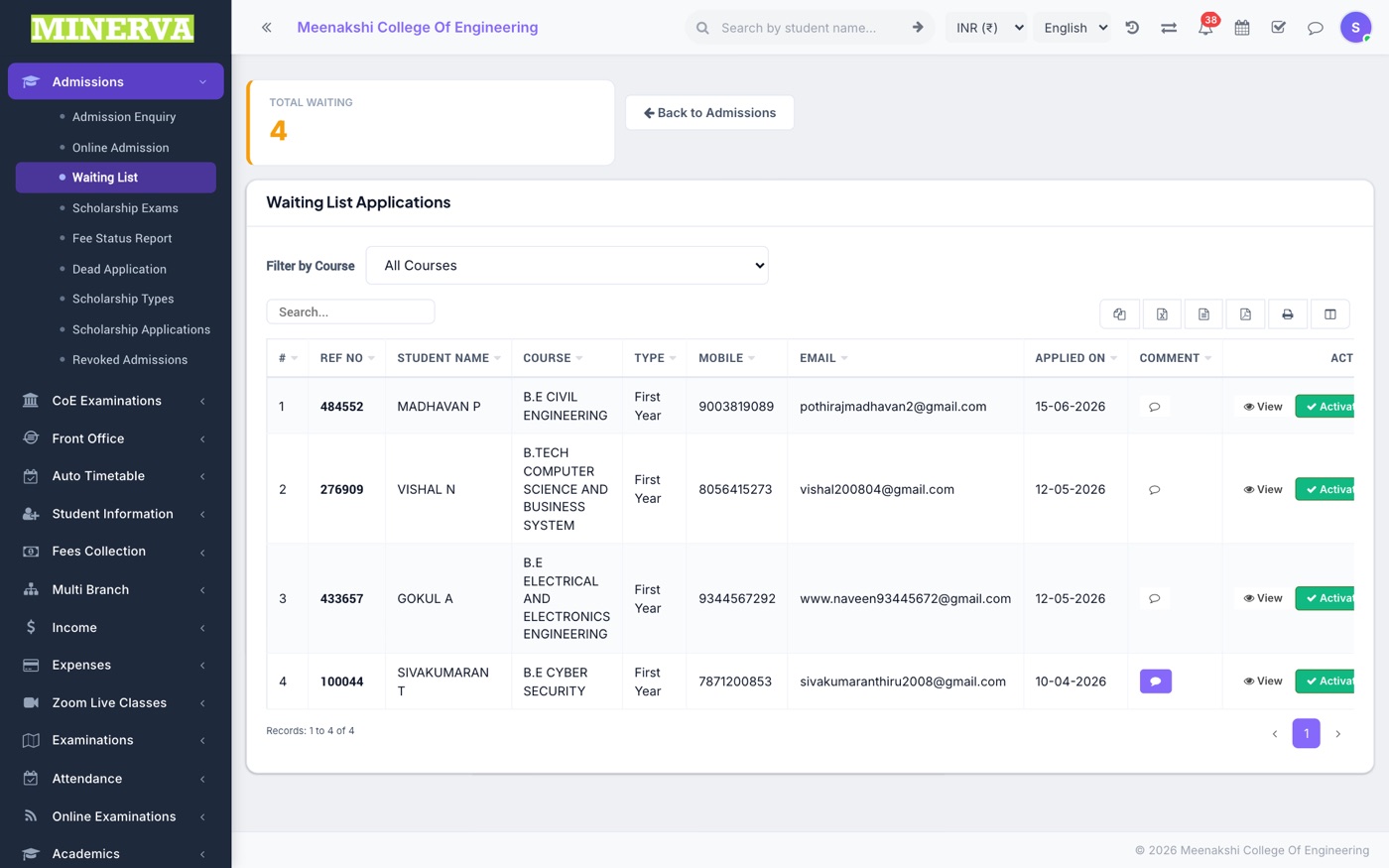
Applicants parked on the waiting list — restore them to the active list or convert when a seat frees up.
Scholarship Exams
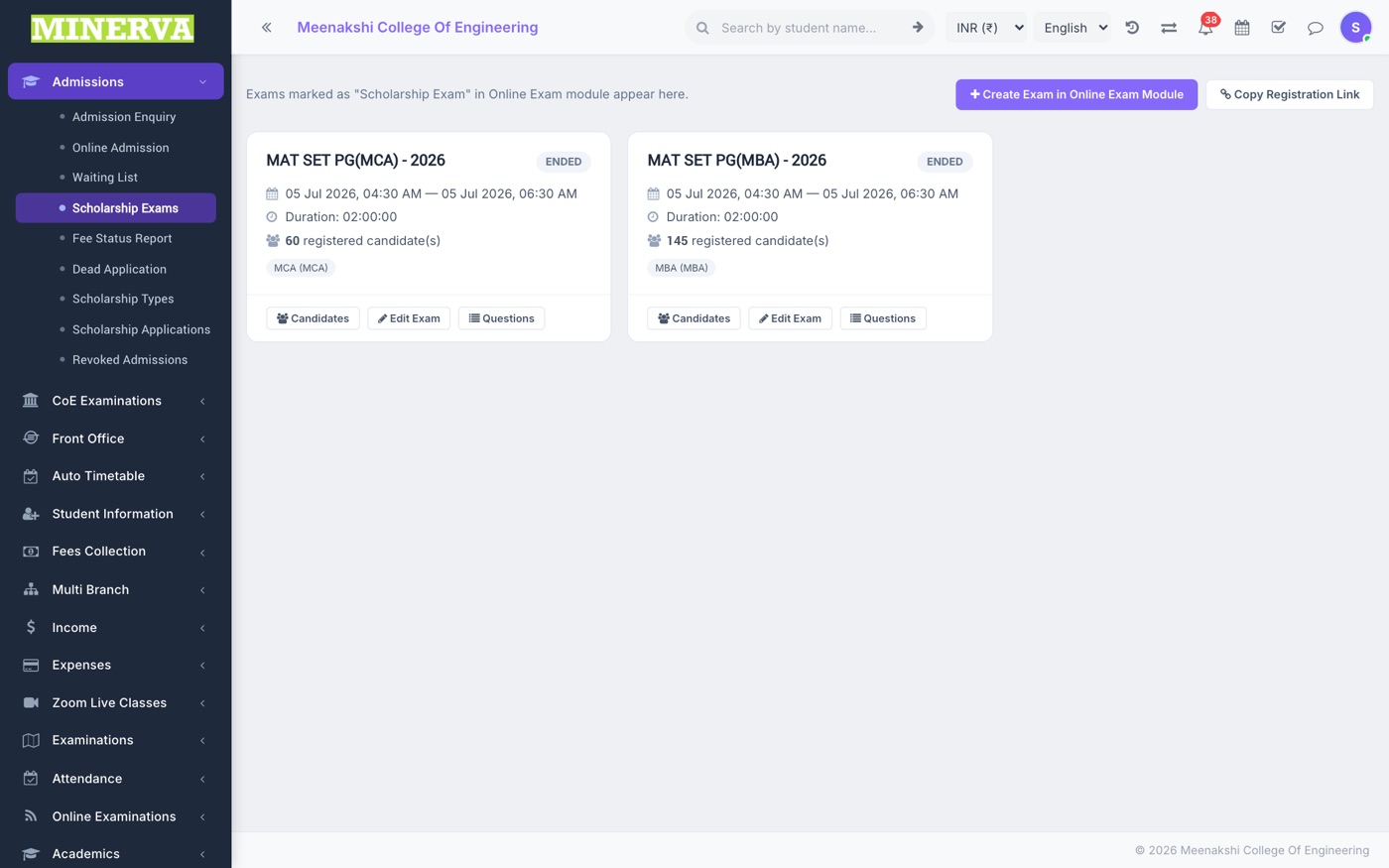
Entrance/scholarship exams for applicants: create an exam, register candidates, enter marks, and pick winners whose award becomes a fee discount or advance balance.
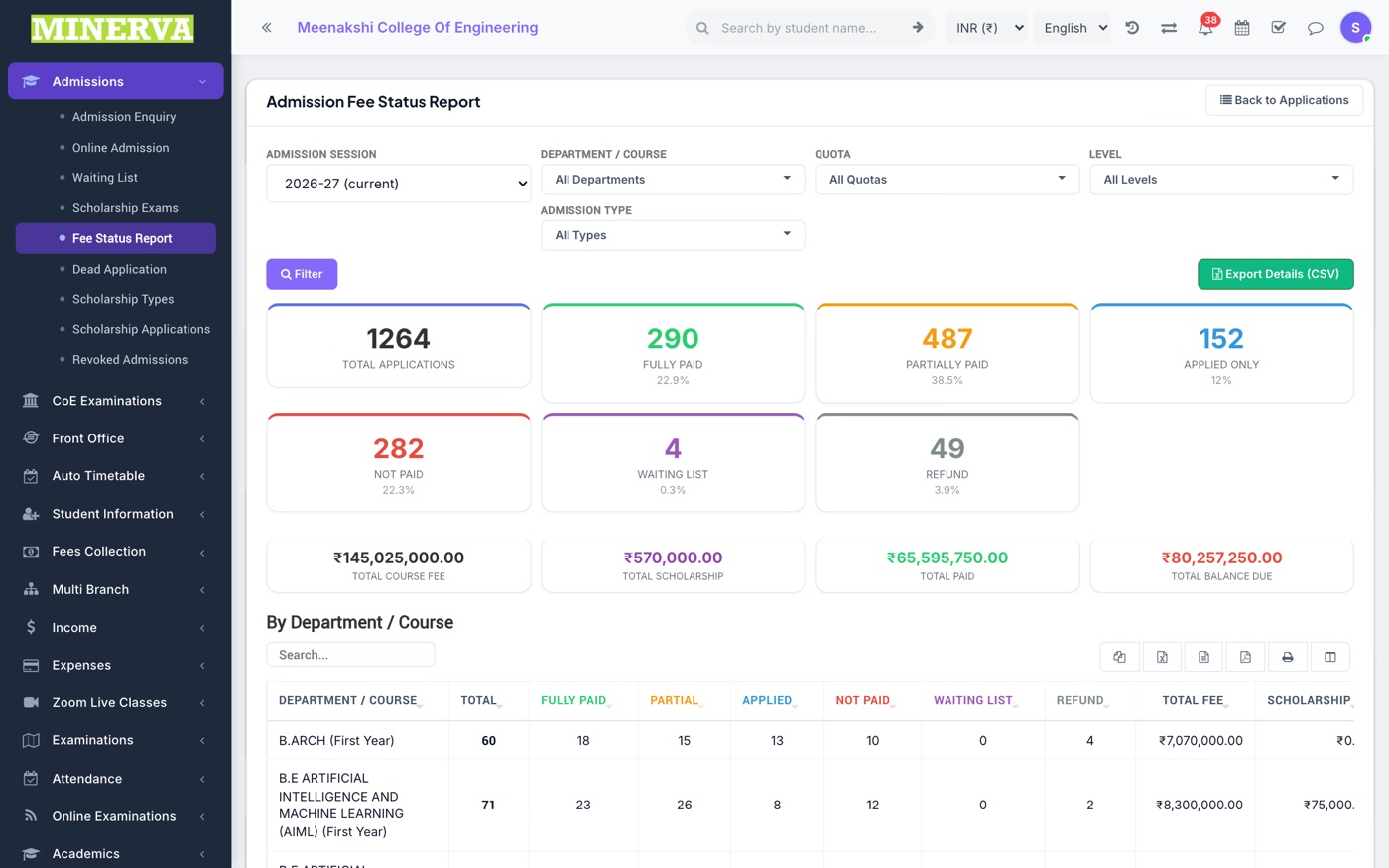
Fee Status Report
Cross-tab of applicants by fully paid / partially paid / applied / not paid / waiting list / refund, broken down by department, quota, and level — with Excel export.
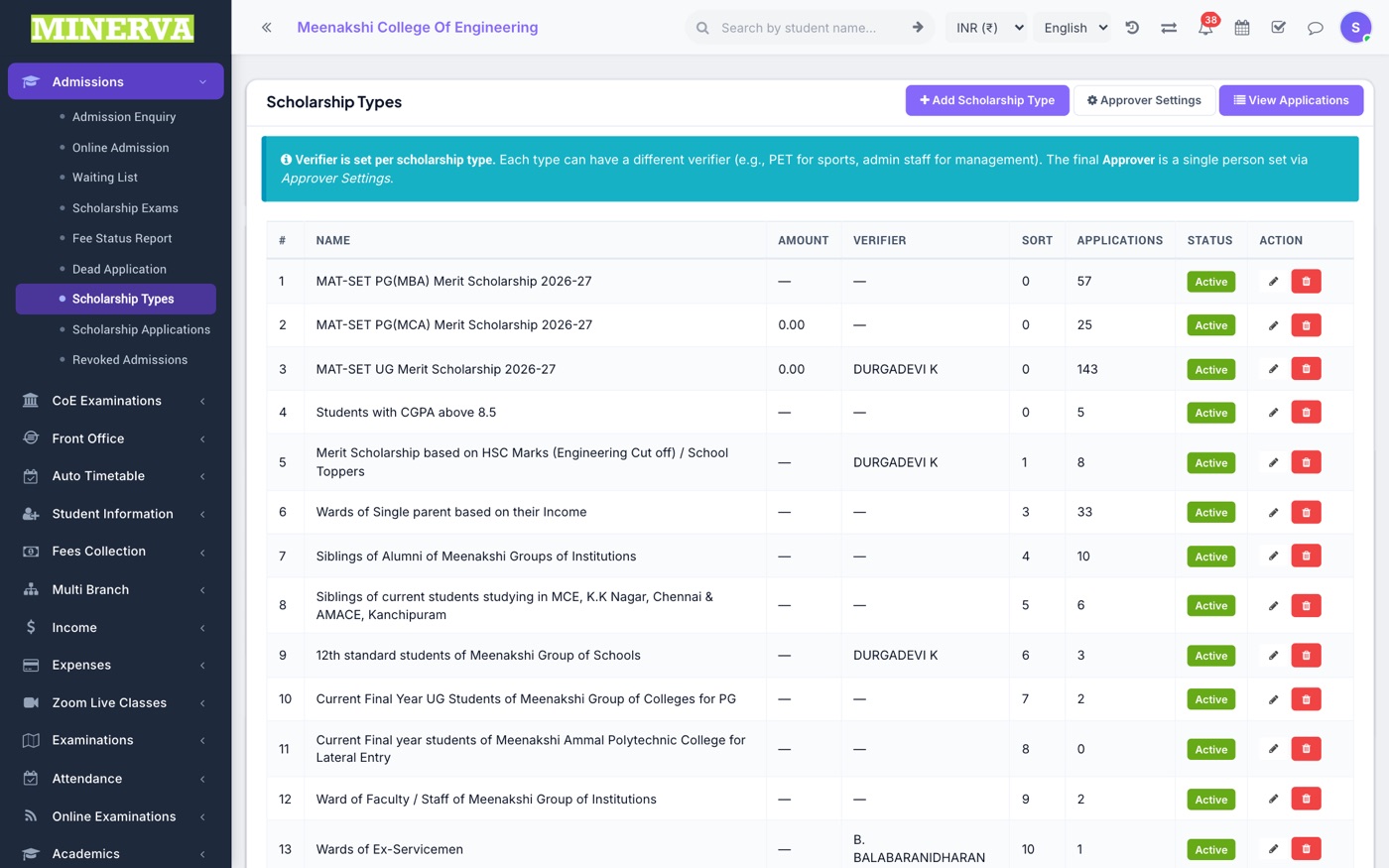
Scholarship Types & Applications
Define scholarship programs (amount or tier-based) and process student applications against them: approve, override amounts, and track awards.
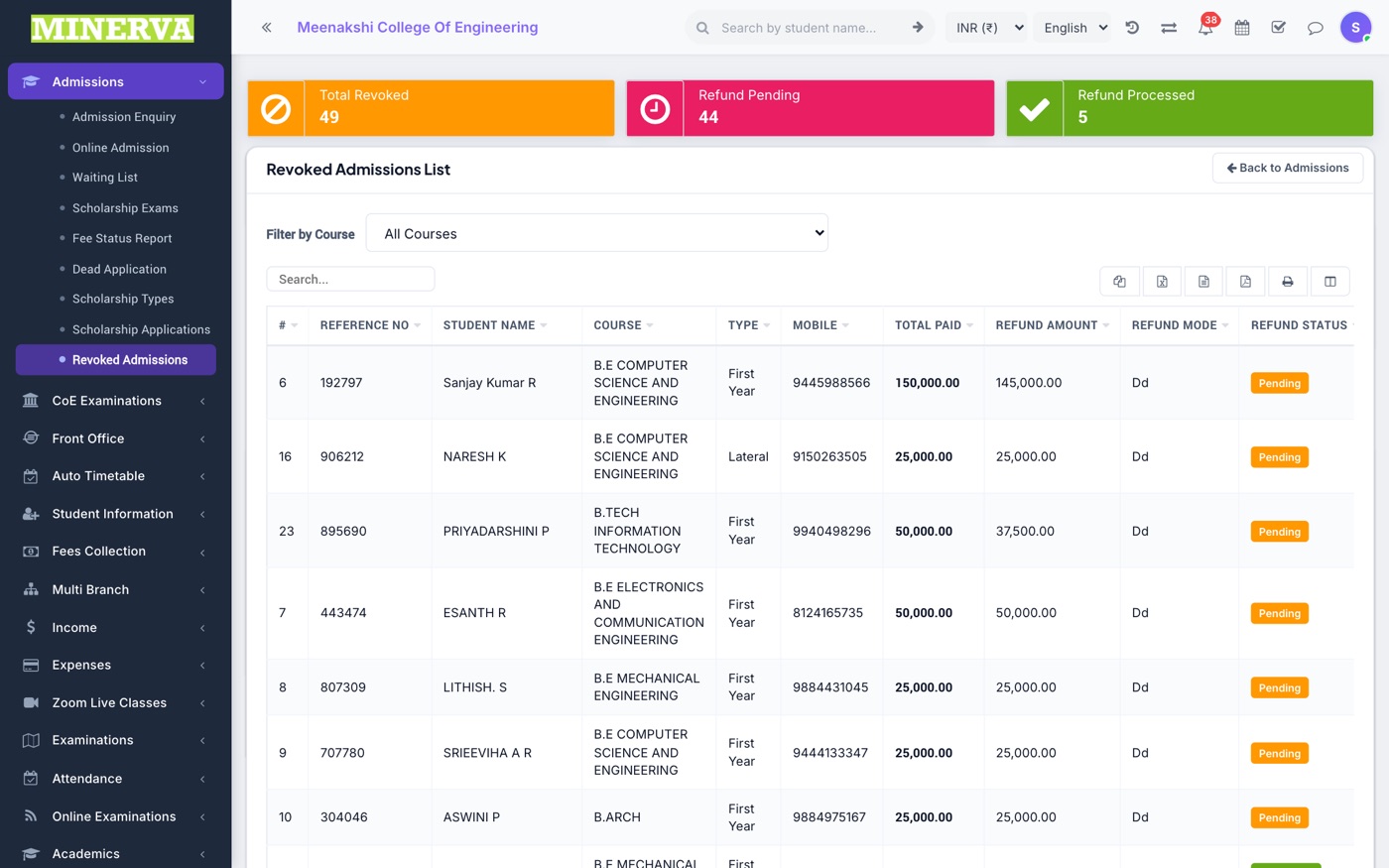
Revoked Admissions
Cancelled admissions with their refund pipeline.
- Revoke from the application's action menu — record the refundable amount and reason.
- Track each refund here (pending → processed) and re-admit if the family returns.
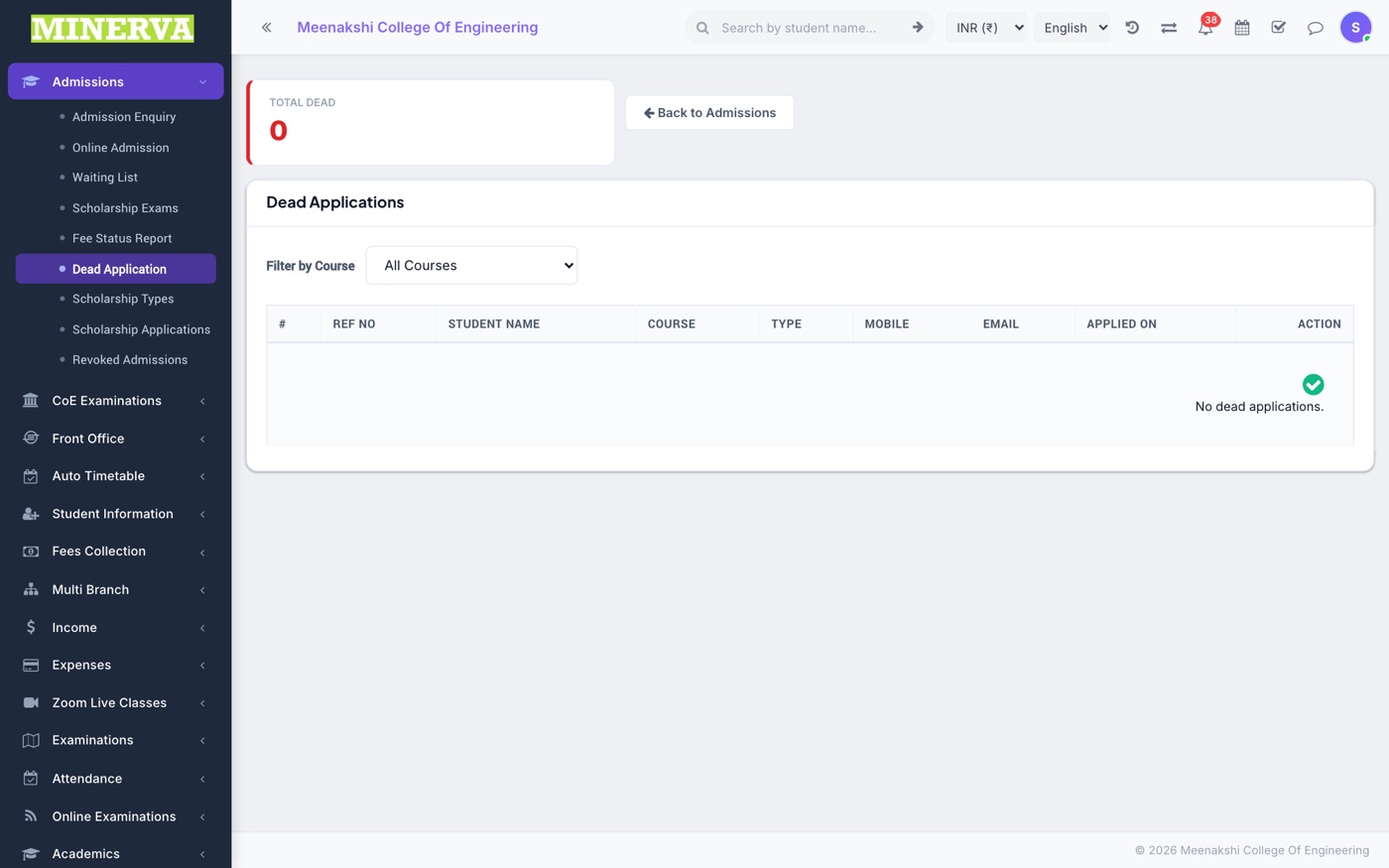
Dead Application
Applications confirmed not real/abandoned — moved out of the active list; restore or delete permanently from here.