Minerva · Staff Manual
System Settings
Institution-wide configuration — everything under System Settings applies to the whole institution and is normally maintained by the Super Admin or Admin.
General Setting
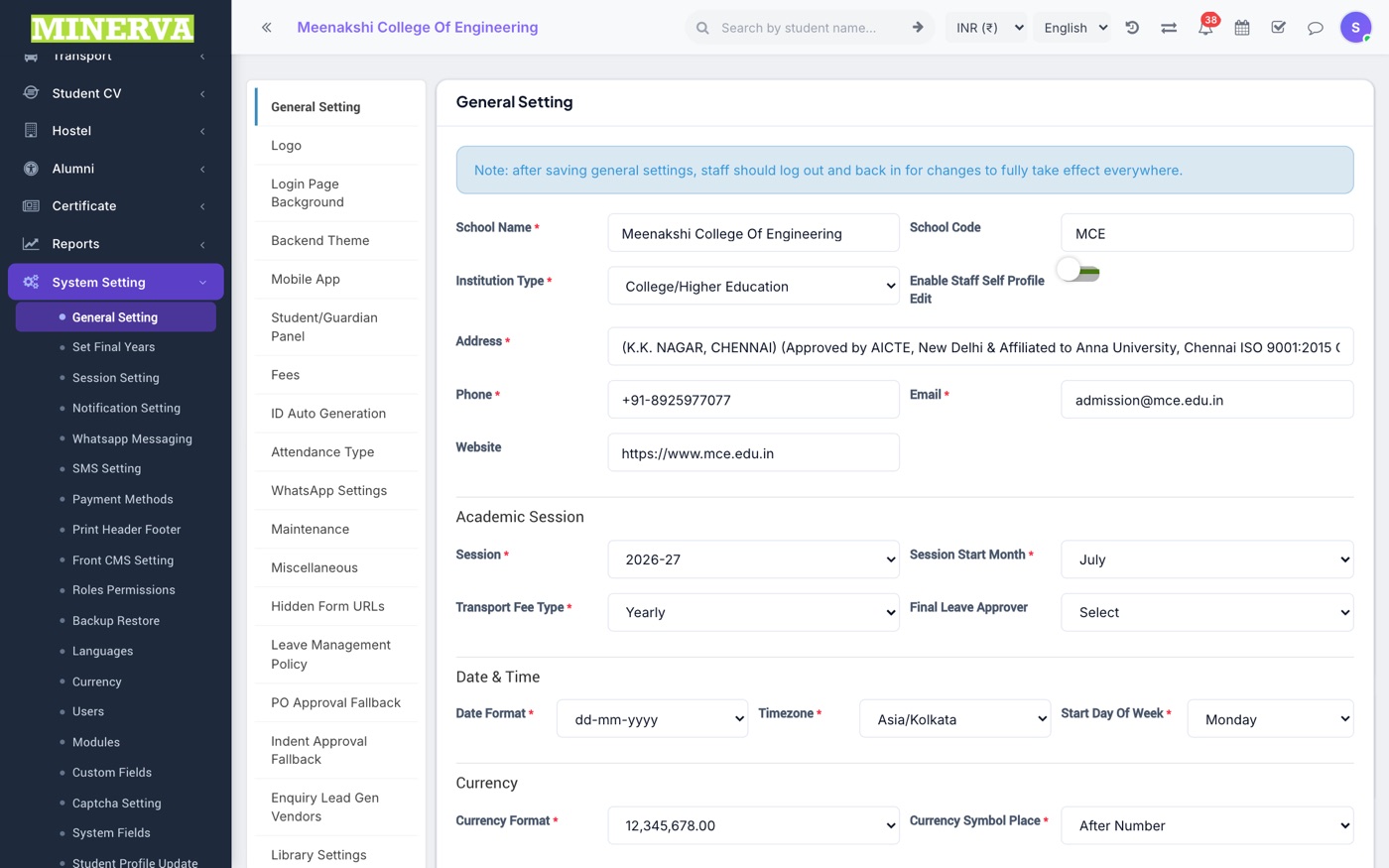
The institution's core profile: name, address, contact details, logos, academic session, date format, currency, language, and feature toggles — organised as tabs across the top of the page.
- Open System Settings → General Setting.
- Switch between the tabs (General, Logo, Academic, Notification, …) and change the fields you need.
- Press Save inside the tab you edited — each tab saves separately.
- Changes apply immediately across the web portal and mobile app.
Roles & Permissions
Controls what every staff role can see and do. Each role carries per-feature permissions (View / Add / Edit / Delete) that drive the sidebar and every action button in the system.
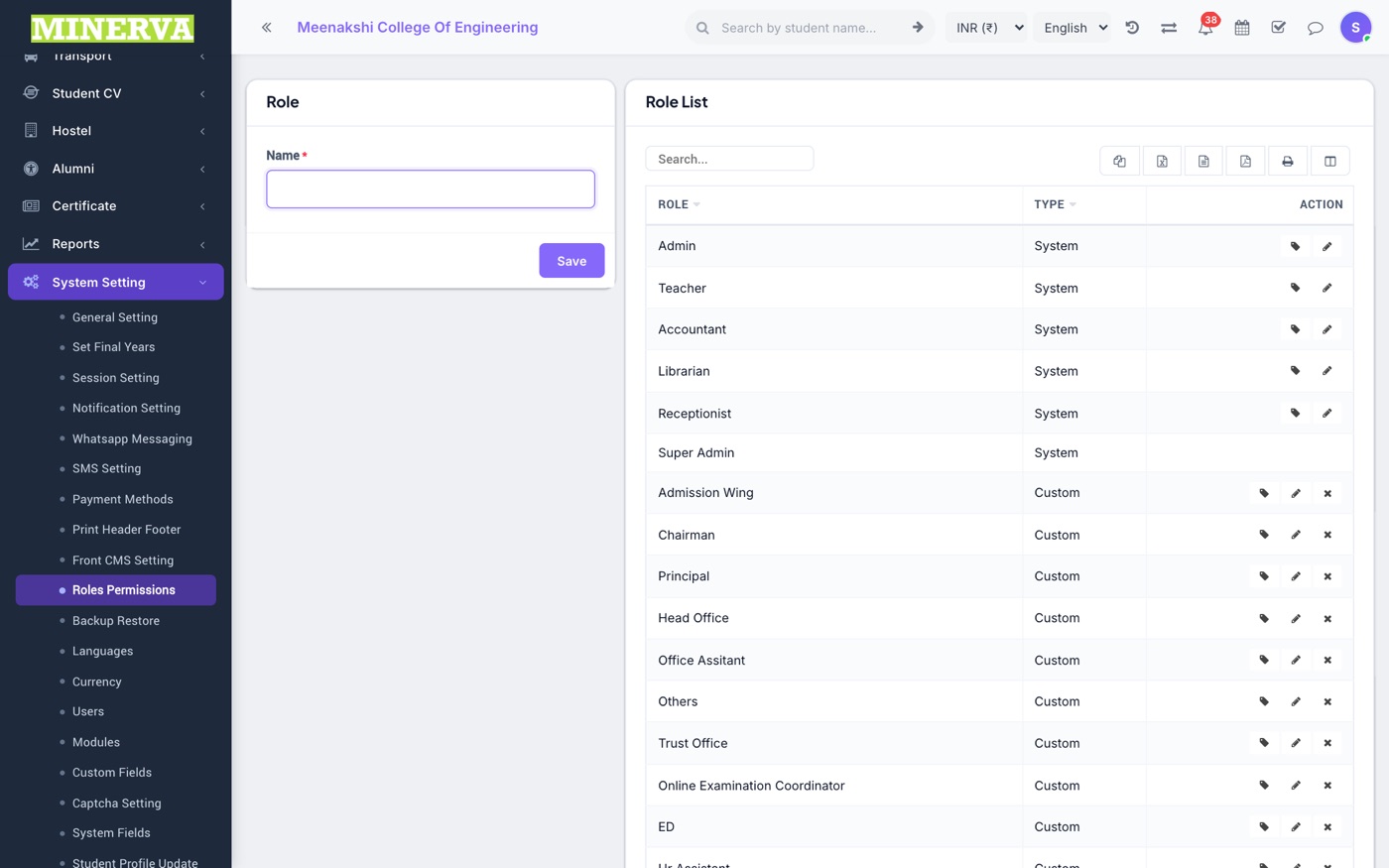
- Open System Settings → Roles Permissions to see the role list.
- Press + Add to create a role, or the edit (pencil) icon to rename one; the delete icon removes a role that's no longer assigned to staff.
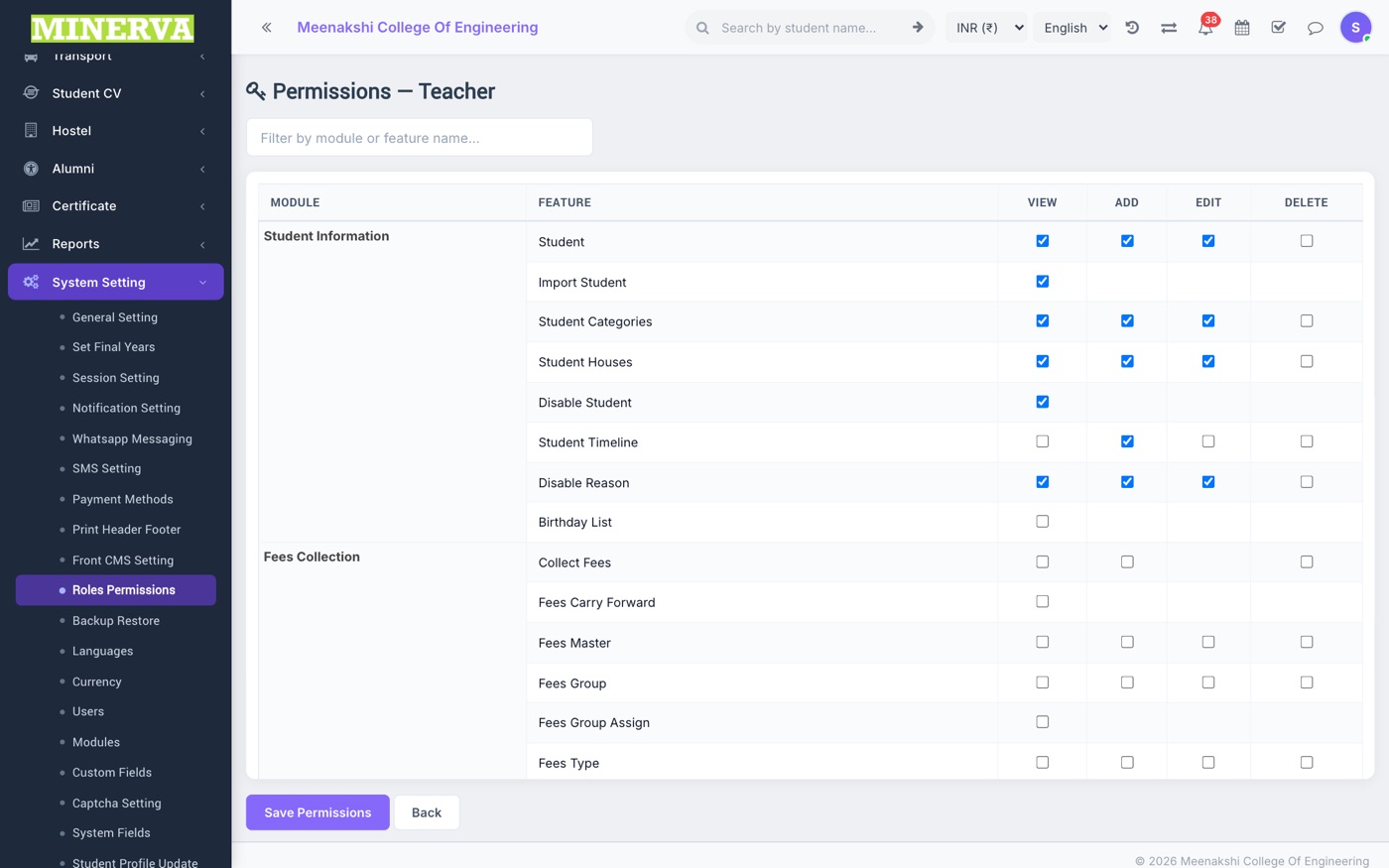
- Press the key icon on a role to open its permission matrix.
- Tick or untick View / Add / Edit / Delete per feature, then press Save — the role's staff see the change on their next page load.
Session Setting
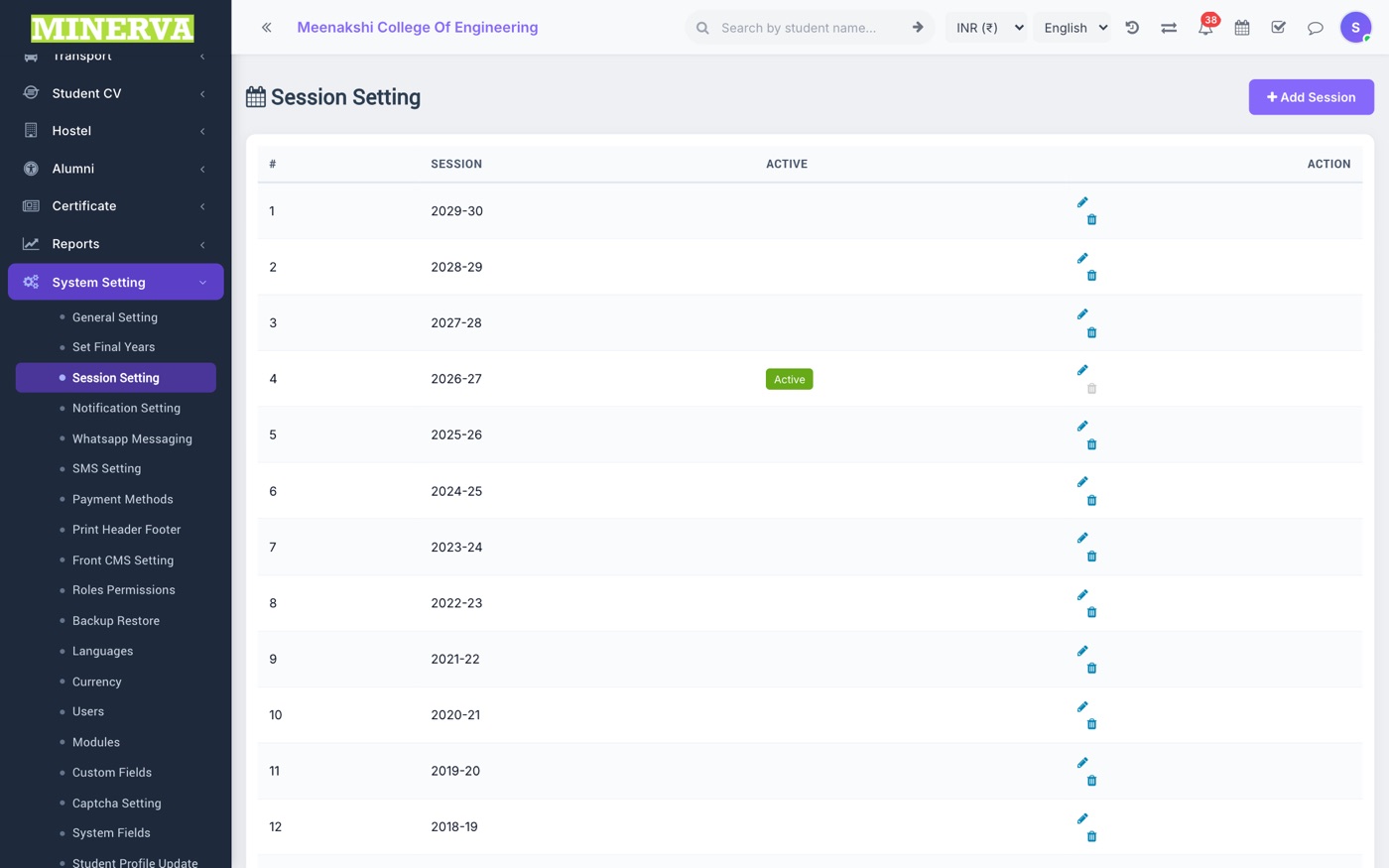
Academic sessions (years). One session is active at a time; students are enrolled per session.
- Press + Add to create the next academic session.
- Use edit to rename, or delete for an unused session.
- Set the current session in General Setting → Academic tab.
Users
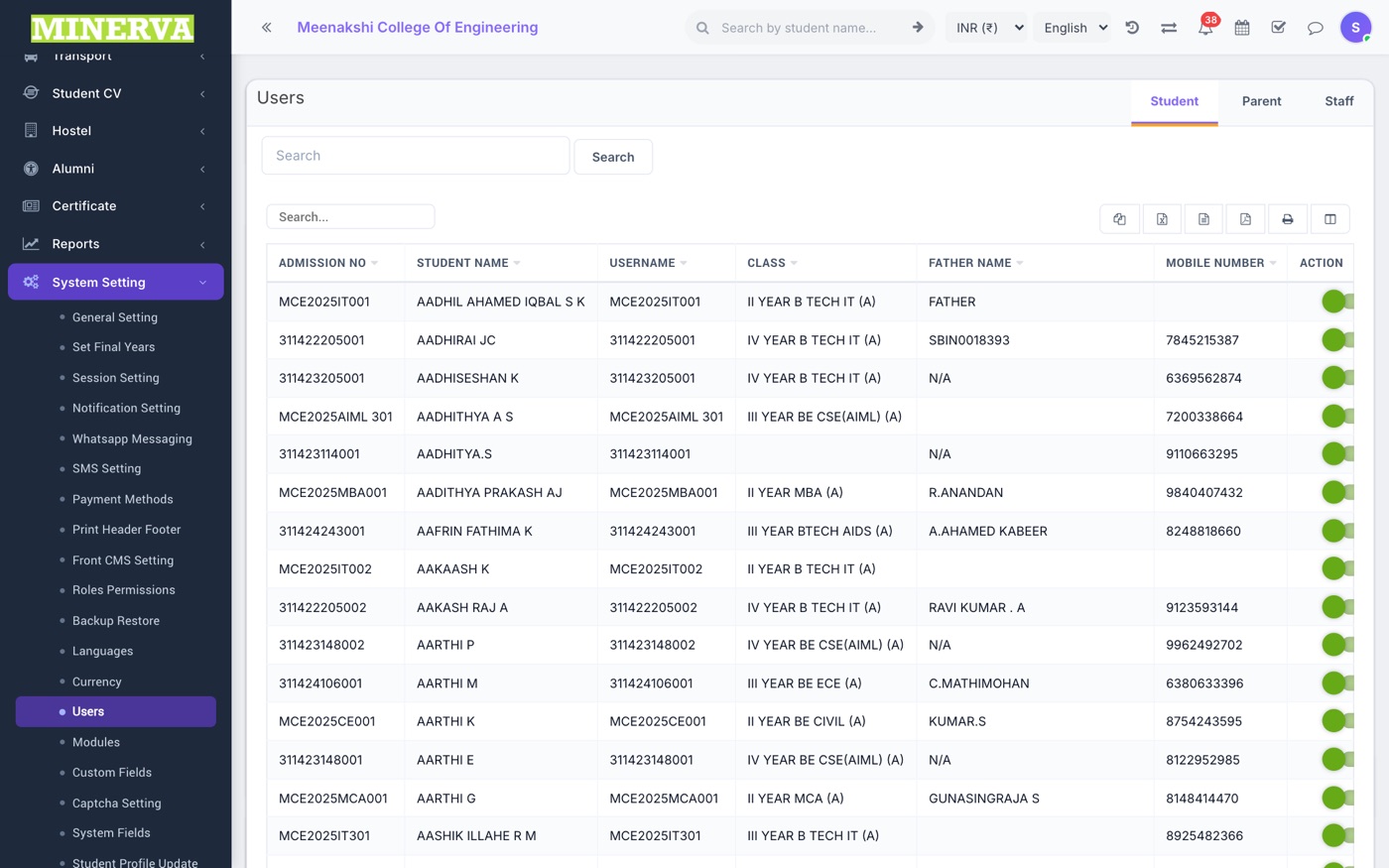
Login accounts for students, parents, and staff — activate or deactivate them here.
- Search for the user by name or username.
- Toggle the active switch to enable or disable that login.
Notification Setting
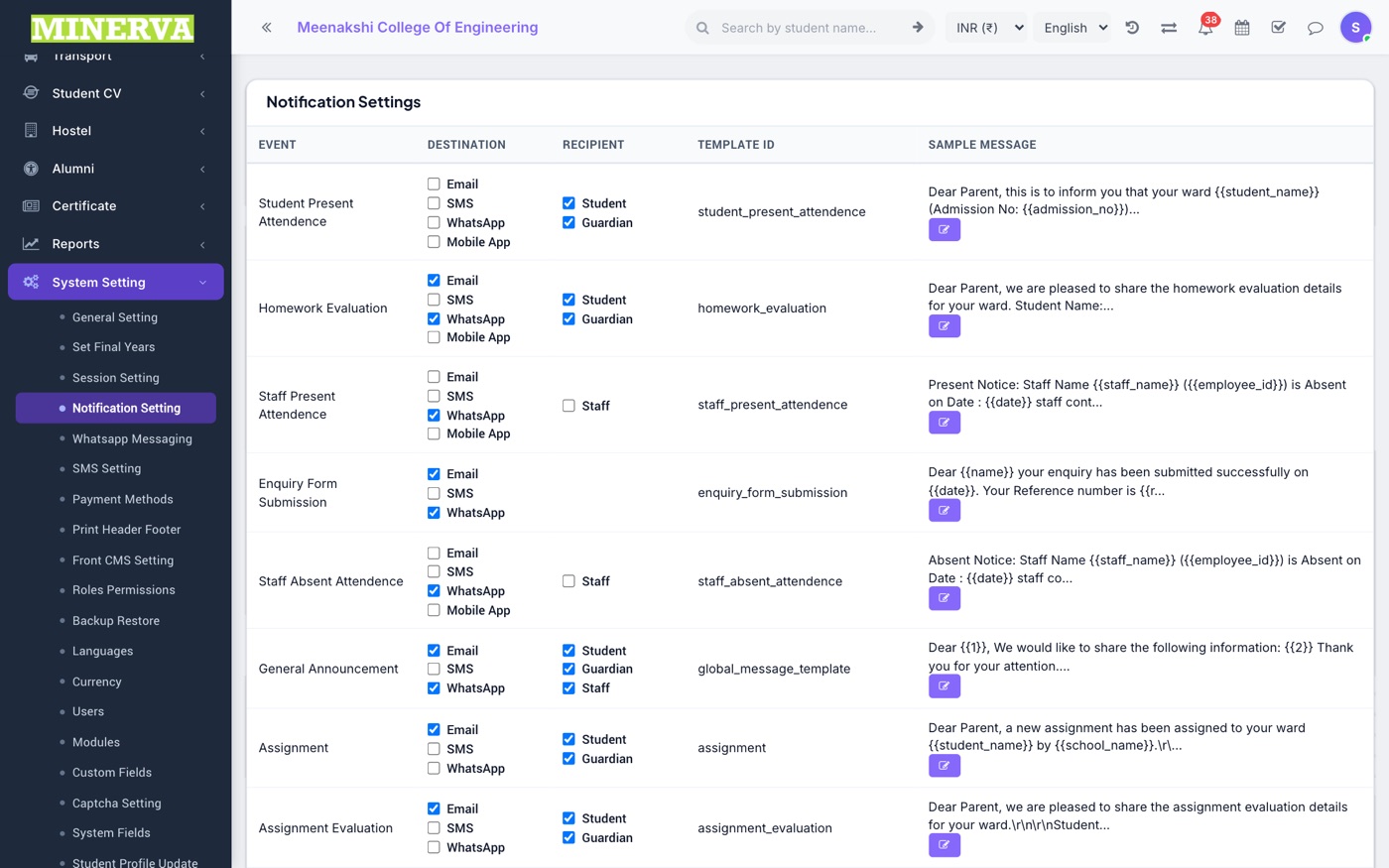
Which automatic notifications (email / SMS) go out for events like absence, fee due, or exam results.
WhatsApp Messaging
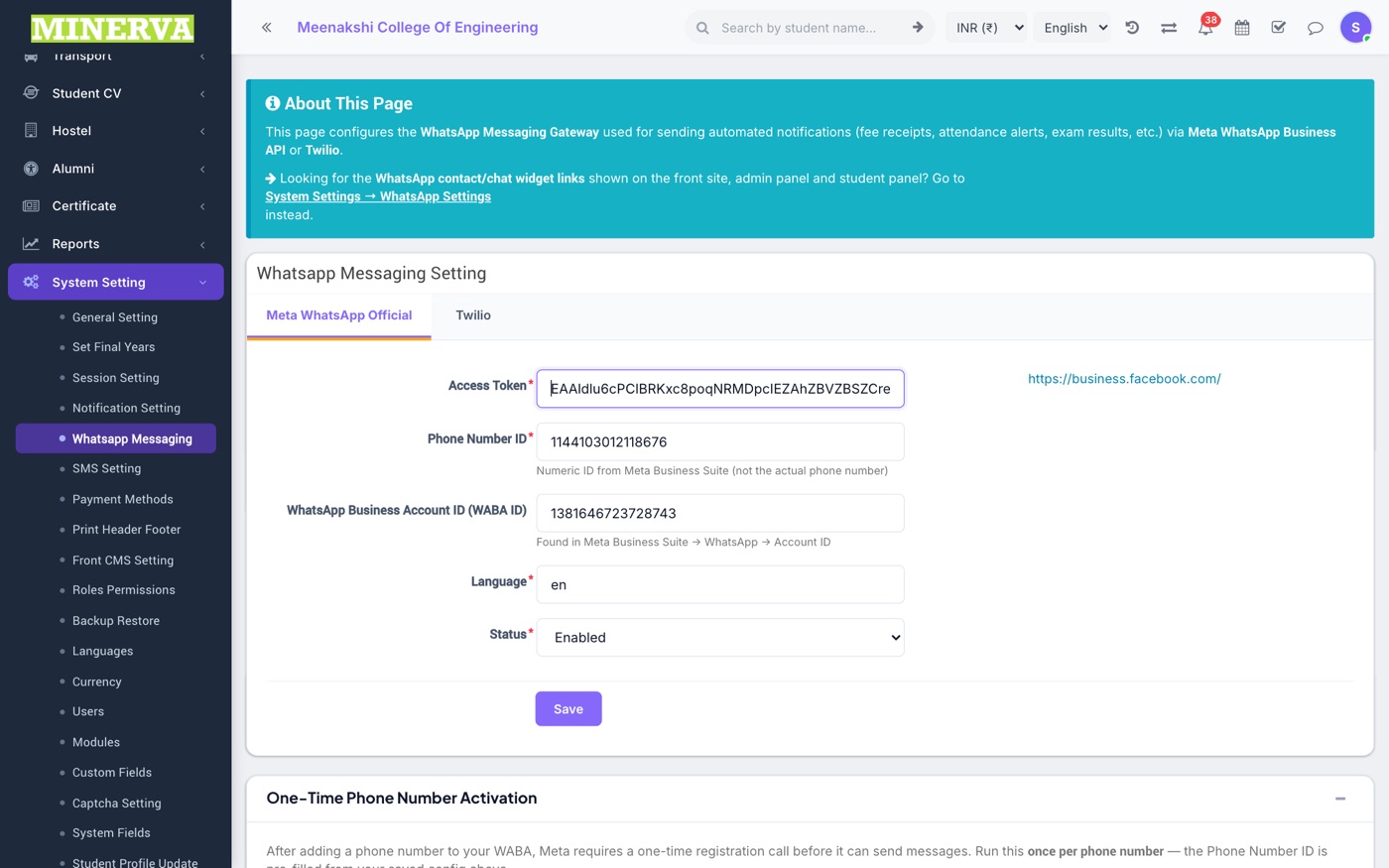
WhatsApp Cloud API connection and message templates for the Communicate module.
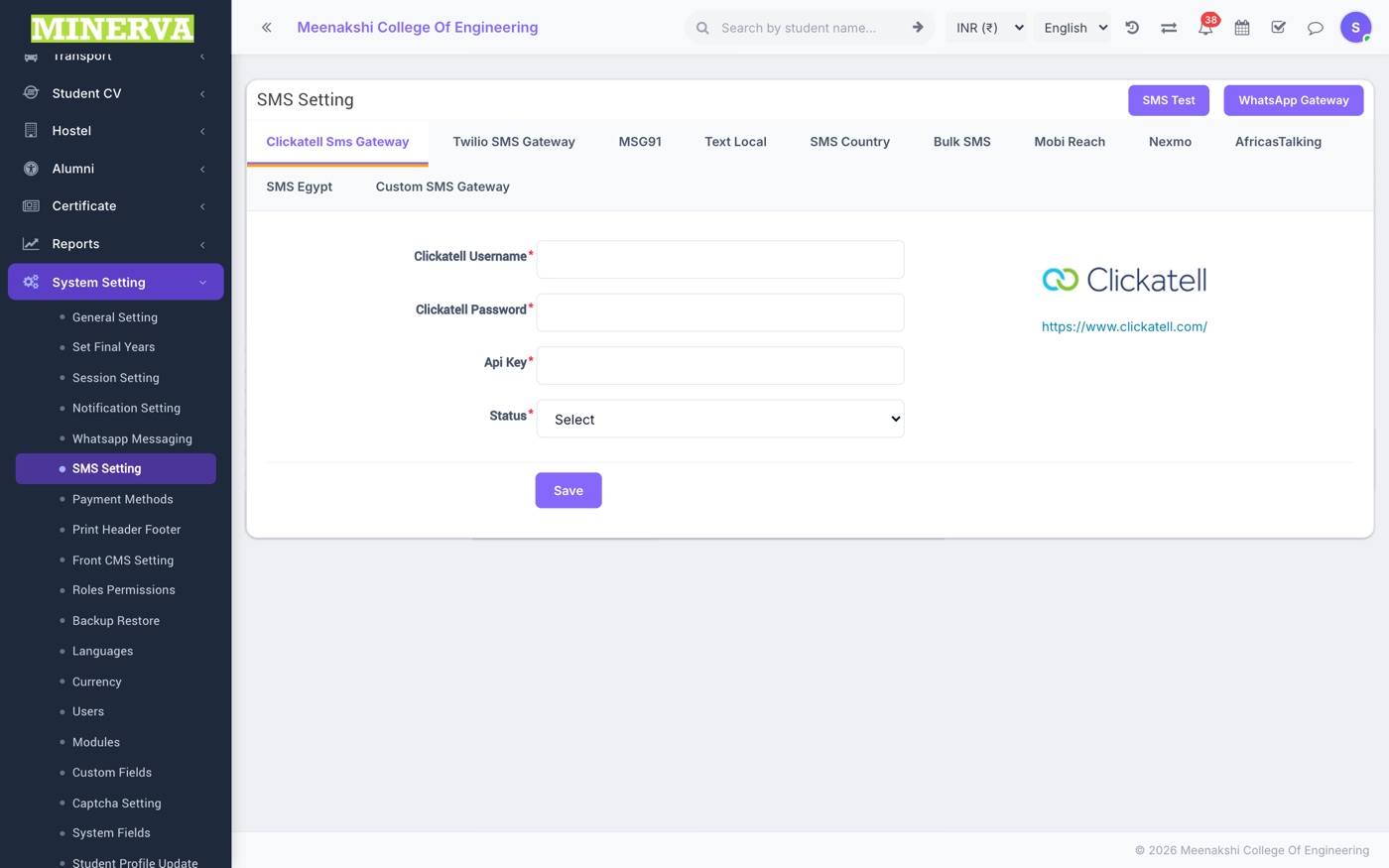
SMS Setting
SMS gateway credentials used by Communicate → Send SMS.
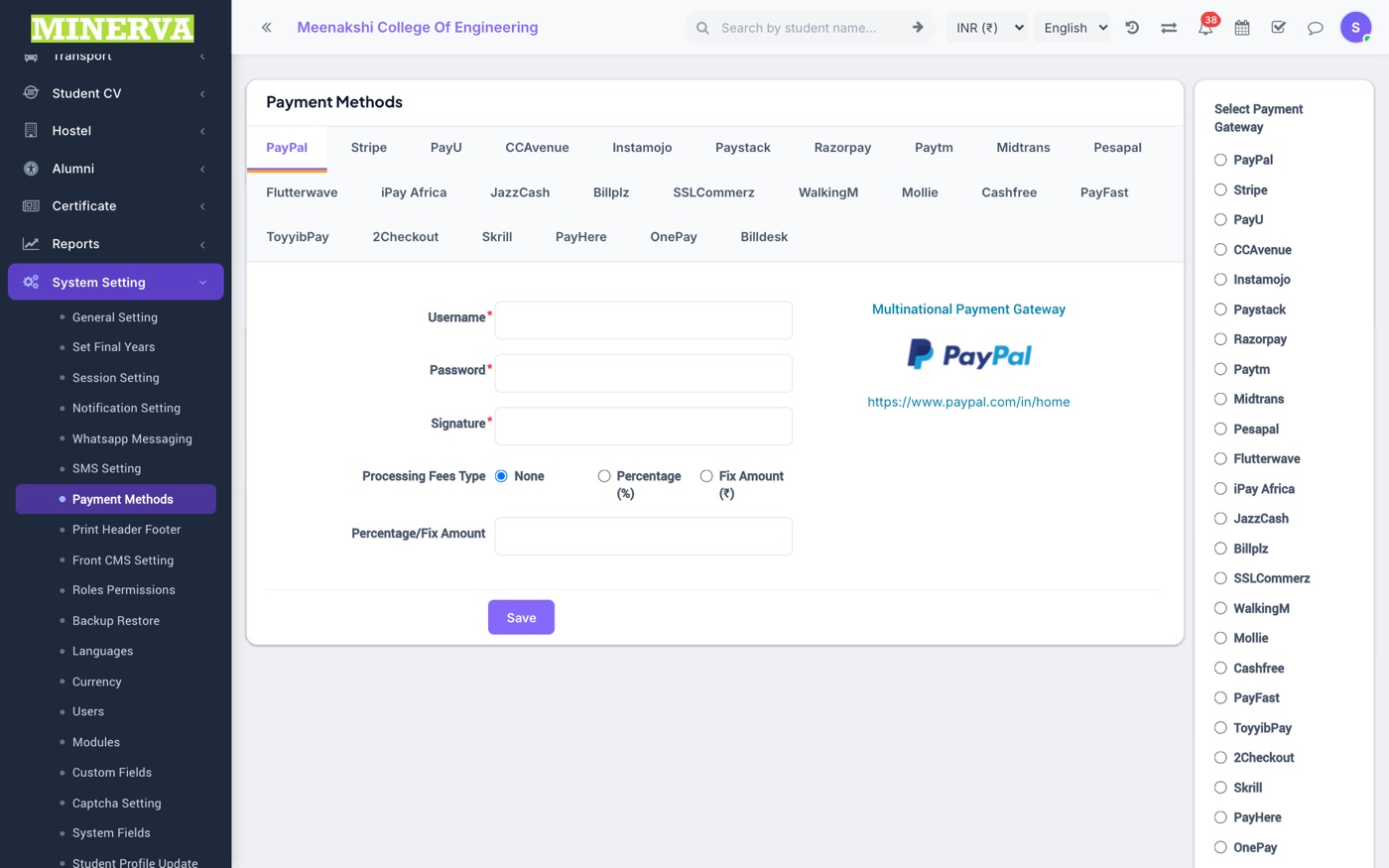
Payment Methods
Online payment gateway configuration (keys, mode) used for student fee payments.
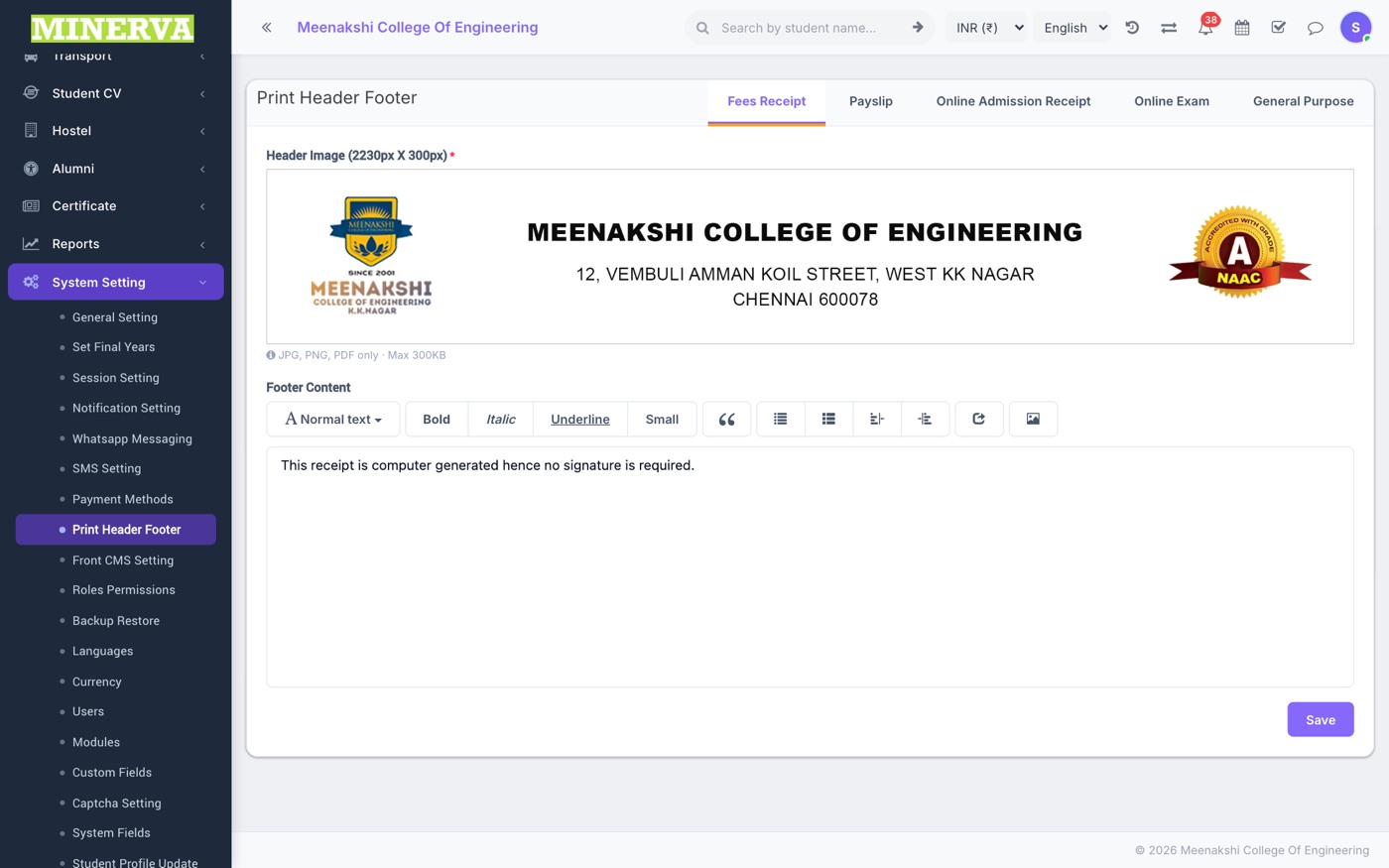
Print Header / Footer
Letterhead images used on printed receipts, ID cards, and reports.
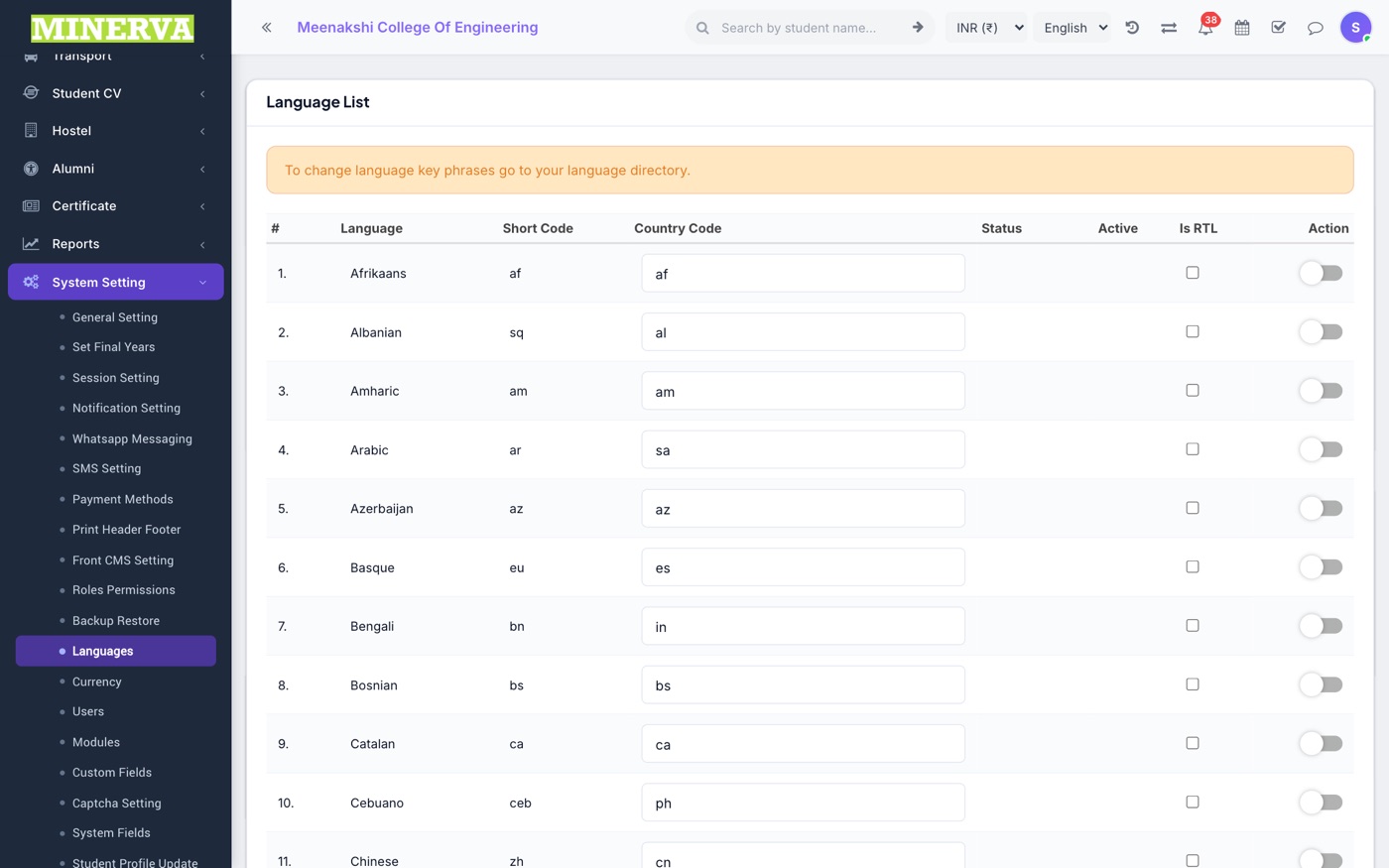
Languages & Currency
Display language options and the currency symbol used across all fee screens.
Modules
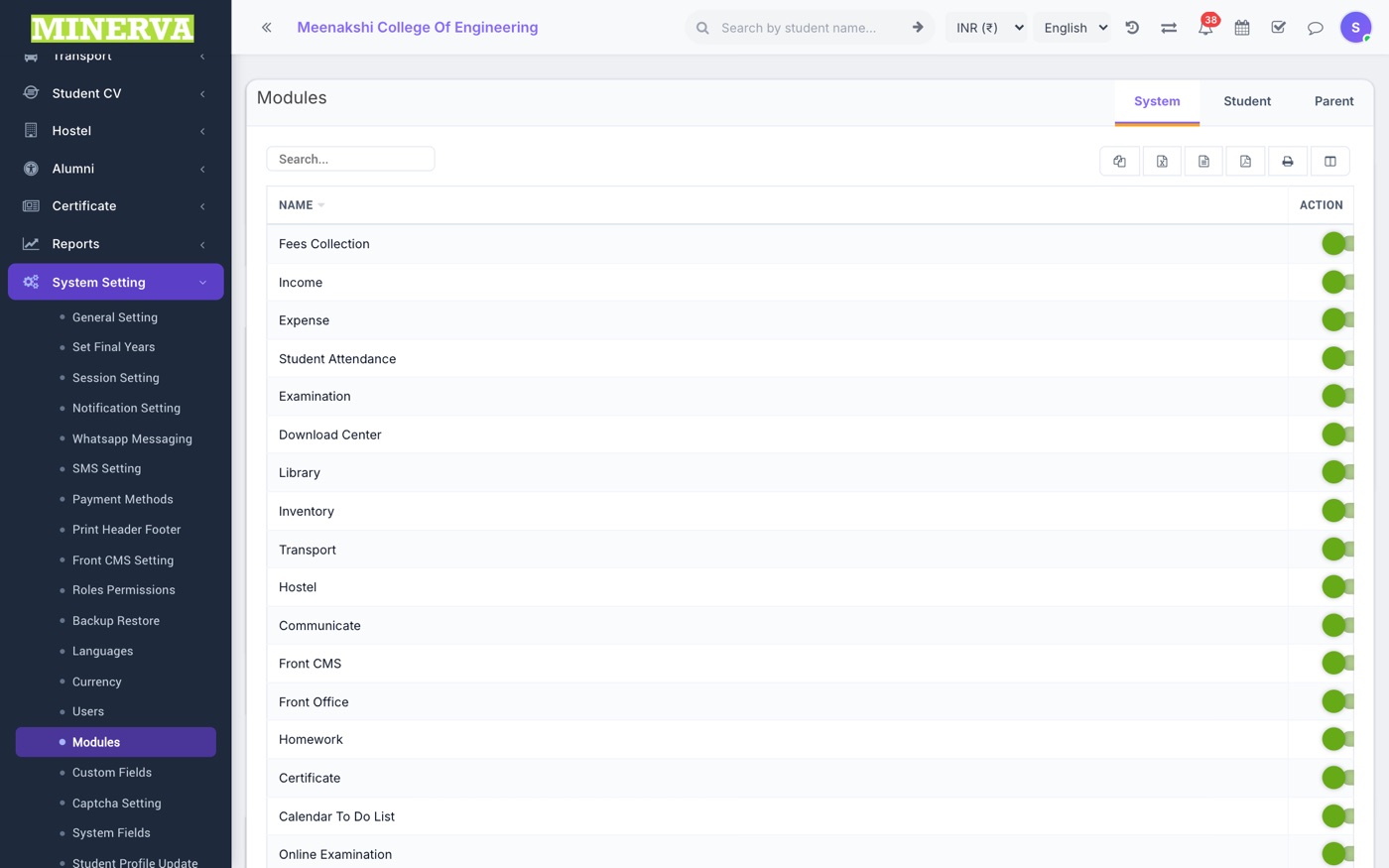
Turn whole modules on or off for this institution — a disabled module disappears from every sidebar.
- Toggle a module's switch to enable or disable it institution-wide.
Custom Fields
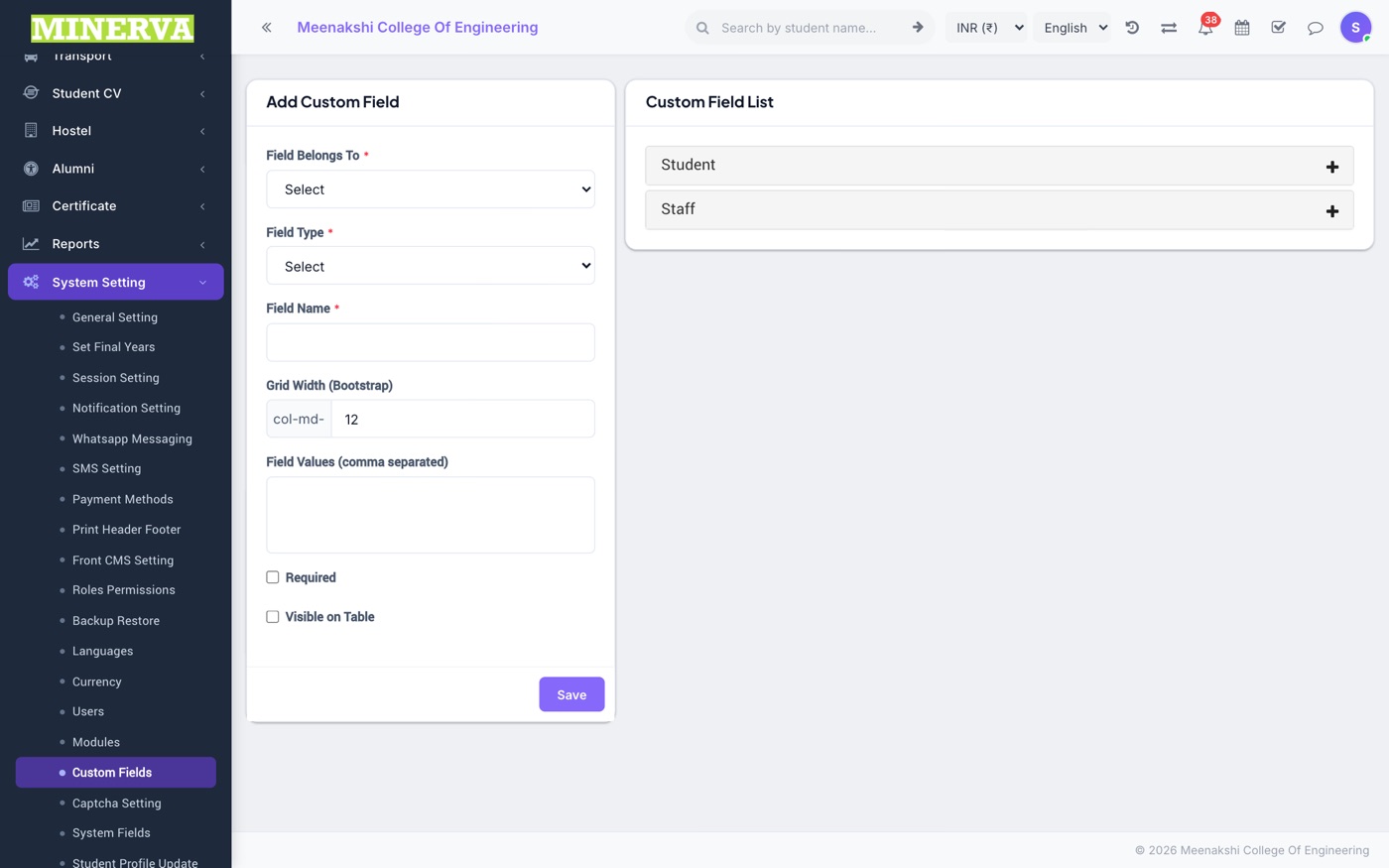
Extra fields you can add to Student or Staff records (e.g. a community certificate number).
- Press + Add, choose the belonging screen (Student / Staff), field type, and whether it's required.
- The field appears on the respective admission/edit forms immediately.
System Fields
Show or hide built-in fields (middle name, category, …) on student forms.

Backup
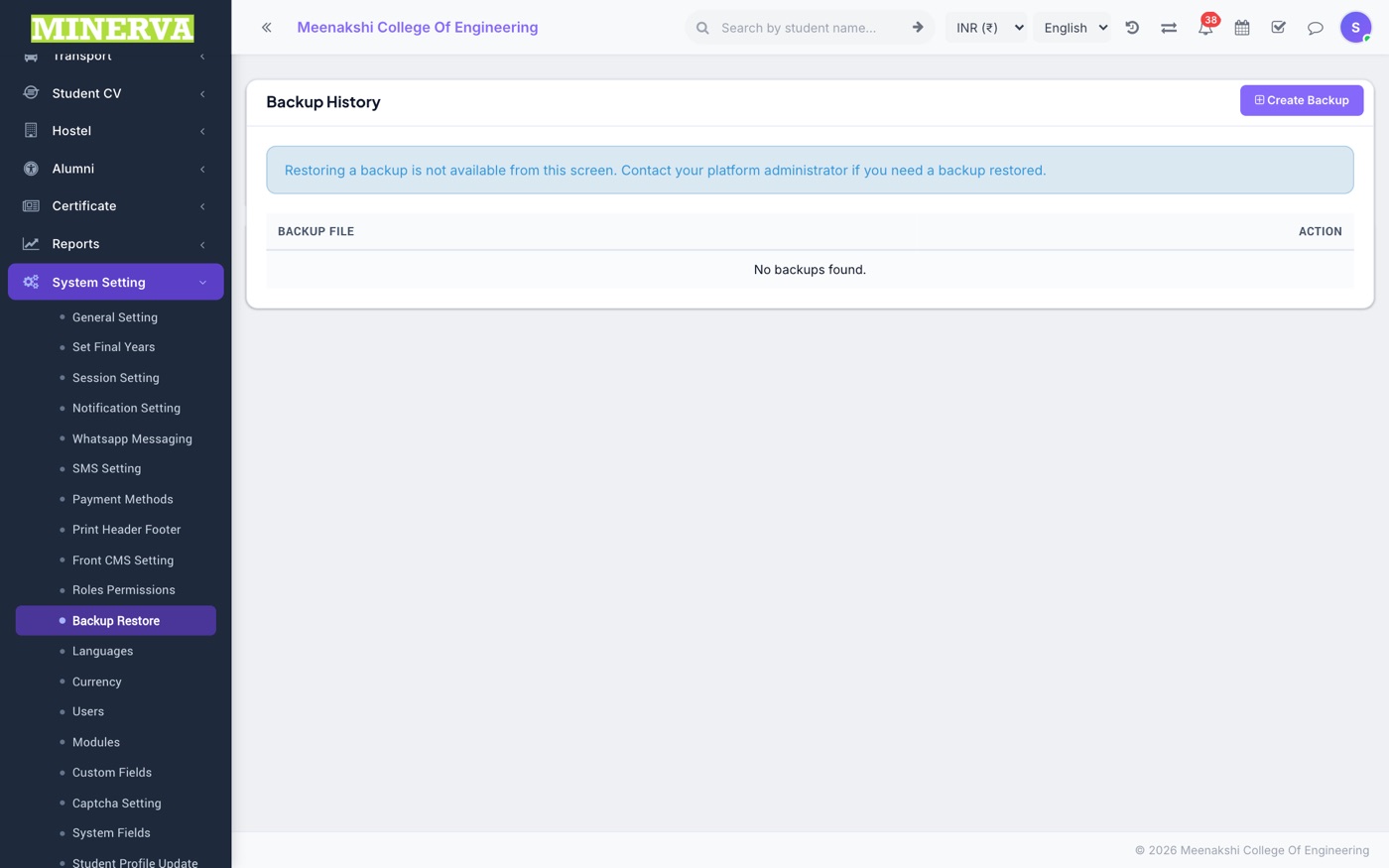
On-demand database backups of your institution's data.
- Press Create Backup and download the generated file — keep it somewhere safe.
Other Settings
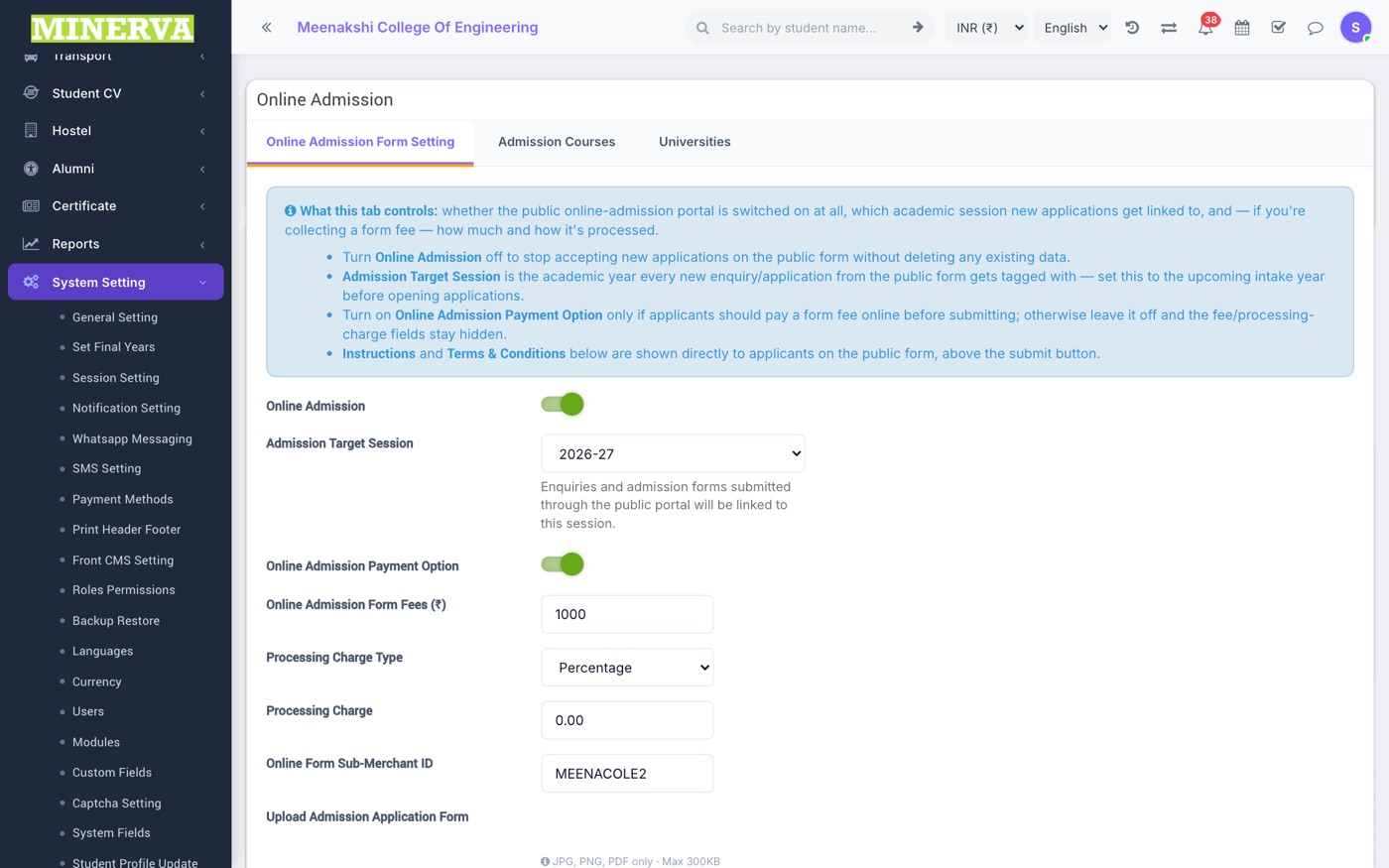
The remaining entries follow the same pattern: Set Final Years (which classes count as final year), Front CMS Setting, Captcha Setting, Student Profile Update (what students may edit themselves), Online Admission (public admission form options), File Types (allowed upload extensions), and Sidebar Menu (show/hide menu entries).